Web & applications
Desktop applications
I help plan desktop applications around the workflows, roles and information people use every day. Platform requirements and integrations shape the scope alongside the interface and user experience.
Enquire about this service ↗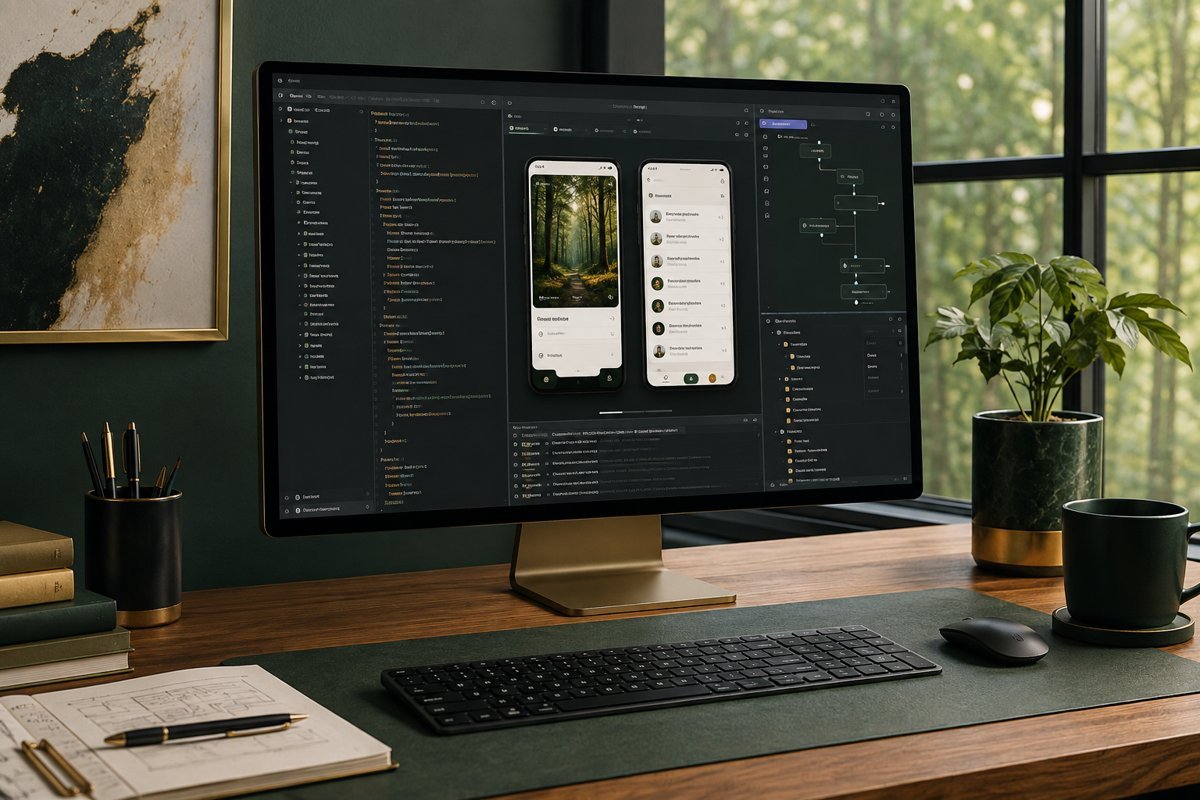
HOW I CAN HELP
Make complex work easier on desktop.
Application feature planning
Connected systems and reporting scope
THE APPROACH
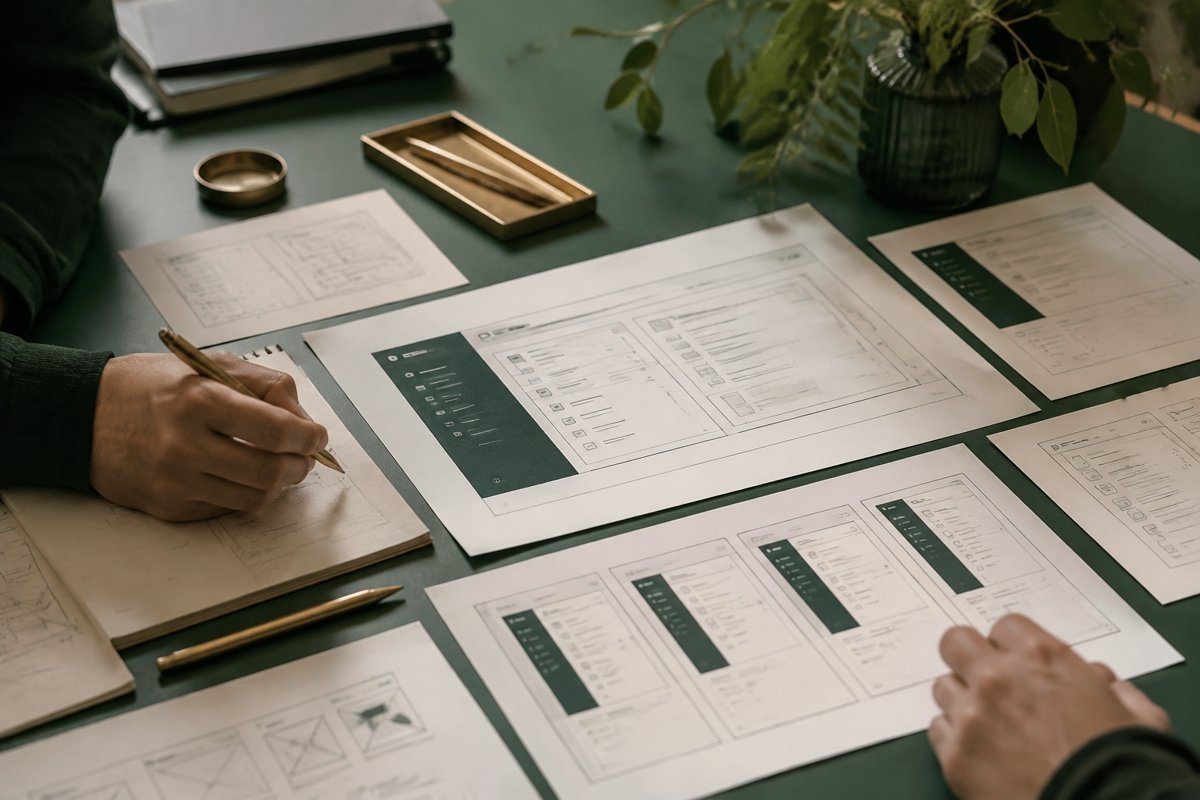
From the brief to a clear direction.
Yes. I can help design and develop desktop applications around your workflow. We will confirm the operating systems, users and deployment requirements during scoping.
Operating systems, user roles, current tools and the problem to solve.
THE APPLICATION
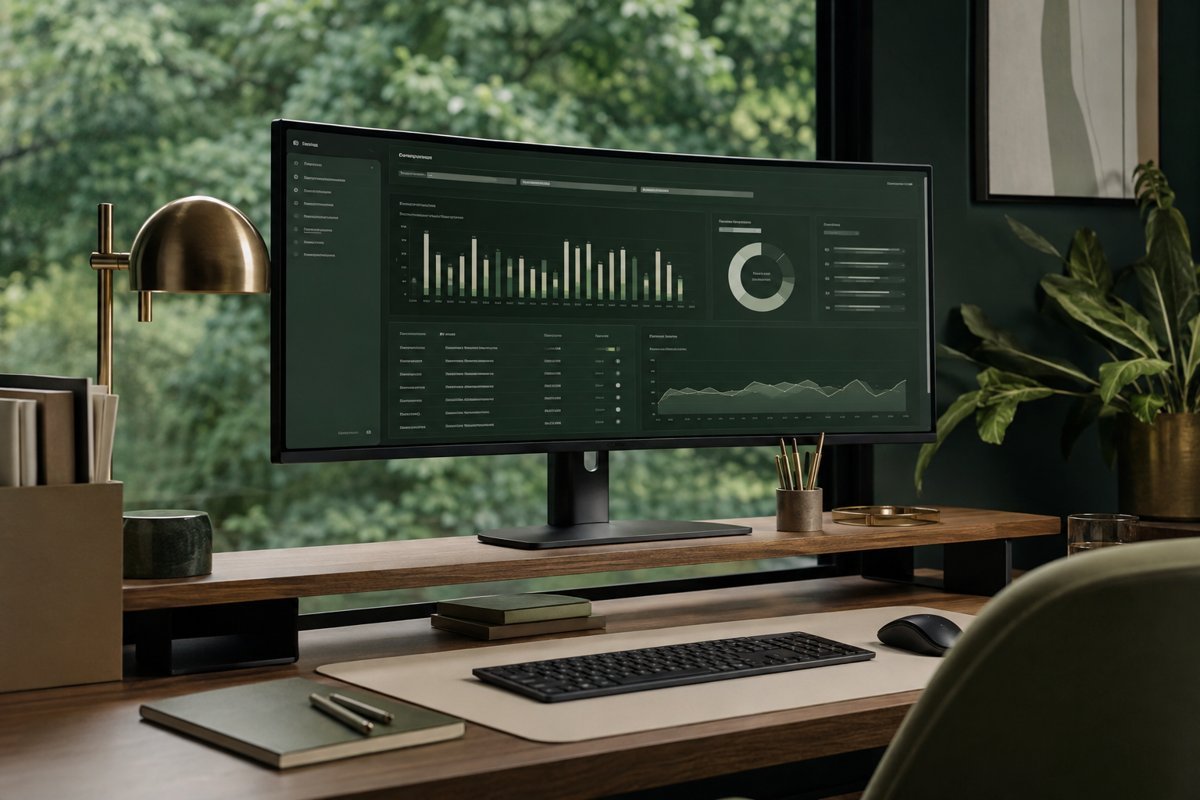
Built around the way you work.
We can scope offline functionality where the workflow needs it, including how local data is stored and synchronised when a connection returns.
Discuss your briefMost desktop software requests start with a feeling that the current way of working is slow, scattered or fragile, not with a specification. My job in the early stage is to turn that feeling into a clear description of who uses the application, what they do in it all day, and what has to be true for it to be worth building.
Start by asking whether it needs to be a desktop application
Before anything is designed, I ask why this should live on a desktop at all. A web application is easier to deploy, update and support, and it runs on whatever machine your team already has. So the burden of proof sits with the desktop option.
There are real reasons to choose it. The tool may need to talk to local hardware such as scanners, printers or serial devices. It may need to work for long stretches without a connection. It may handle large files that are painful to push through a browser, or it may need to sit close to the operating system for shortcuts, background tasks and file handling. If none of these apply, I will say so, and we will look at a web build instead.
A desktop application is justified by what the machine has to do, not by a preference for how the software feels.
Mapping the workflow before drawing a single screen
I spend the first stretch of the work watching or hearing how the job is done today. Who starts the task, what information they have in front of them, where they switch to a spreadsheet or a chat window, and where mistakes usually creep in. Screens come after this, because screens drawn too early freeze the old habits into new software.
The output of this step is a plain workflow map for each role. It shows the steps, the handoffs and the data that moves between them. We review it together, and it often exposes steps that nobody wanted but everyone repeated. Removing those is usually a bigger gain than any feature we could add.
If you are unsure, bring the problem and not the solution. Describe what goes wrong in the current process, how often, and what it costs in time or errors. I will then compare a desktop build, a web build and a configured existing product against that description, and tell you which one I would choose and why. Sometimes the honest answer is a combination, such as a web back end with a small desktop client for the one task that needs the hardware.
Decisions that shape the scope
Desktop work carries a few decisions that web projects can postpone. They change cost and effort quite a lot, so I settle them early and write them down in the scope.
None of these has a universal right answer. They depend on your users, your IT setup and how often the software will change, which is why I raise them in the first conversations rather than discovering them halfway through a build.
I also keep a running list of questions that surface during these sessions. Who owns the data? What happens when two people edit the same record? What does the user do when something fails? Writing the answers down early is far cheaper than finding the gaps during testing, and it gives your team a shared reference when opinions differ later.
- Operating systems: Windows only, Windows and macOS, or Linux as well, and which versions you must support.
- Offline behaviour: what must keep working without a connection, and how local data is stored and synchronised afterwards.
- Installation and updates: how the application reaches each machine, who has permission to install it, and how new versions roll out.
- Hardware and file access: devices, folders, databases or network drives the application must reach.
- Security and data: where data lives, who can see what, and how sign-in works inside your organisation.
Connecting the application to the tools you already use
A desktop application rarely stands alone. It usually needs to read from or write to an accounting package, a database, a CRM, a spreadsheet or an internal API. Each connection is its own piece of work, with its own access rules and its own ways of failing.
I list every system the application touches and describe, for each one, what flows in, what flows out and who owns it. If a system has no usable interface, we decide whether to work around it, replace it or leave it out of the first release. This list tends to decide the real size of the project more than the interface does. If your main need is customer records, read the CRM and custom software page too, since the two overlap.
Many of these decisions look technical but are really business decisions. A requirement to support an older operating system, for example, may double the testing effort for a handful of users. Offline mode may add a whole synchronisation layer. I present these trade-offs in plain terms, with the effect on cost and delivery, so that you choose knowingly and not by default.
Build in stages, and put something usable in front of people early
I prefer to plan the work in phases, with the first phase covering the single workflow that causes the most friction. People who will use the software see a working version early, on their own machines, with their own sample data. Feedback at that point is cheap. Feedback after everything is built is not.
Each phase has a short list of what is included, what is explicitly left for later, and how we will know it works. Timelines depend on complexity, the number of review rounds, integrations and how quickly access and sample data arrive, so I give them once the scope is clear and not before. Delivery is quoted per project.
Authentication and permissions also deserve attention for tools that handle sensitive records. Whether people sign in with company accounts or separate credentials affects both security and support effort. I raise this early, because retrofitting access control into a finished application is slow and tends to leave gaps.
What you have at the end of the planning stage
Whether you build with me, with your own developers or with another vendor, the planning stage should leave you with documents that make the build predictable. These are written to be read by developers and by the people who will sign off the work.
You can take this package to any capable team and get comparable quotes, which is a useful position to be in even if we continue together.
Testing is planned alongside the build, not at the end. Real users try each phase on real tasks, with realistic data, and we record what confuses them. I also plan for the unglamorous parts: logging so that problems can be diagnosed, backups of local data, and a sensible way to recover when an update fails. These are rarely requested but are what keep software trusted after launch.
- Role-by-role workflow maps and a prioritised feature list.
- Platform, deployment and offline requirements.
- An integration list showing what connects to what and who owns each system.
- Interface outlines for the main screens, reviewed with real users.
- A phased plan with scope boundaries for each release.
Signs this is not the right move
If the work happens mostly in a browser, if your team is spread across devices you do not control, or if you need to change the tool every few weeks, a web application will serve you better and cost less to maintain. Also, if the real problem is an unclear process, software will only make the confusion faster.
In those cases a short strategy session is a better first step. We can look at the process, decide what is worth automating and choose the lightest tool that does the job. For team-facing tools, the employee management software page covers one common variant of that decision.
There is a middle path worth mentioning. Sometimes a small utility, built for one narrow job and one team, solves most of the problem at a fraction of the effort of a full application. Starting small does not close off the larger version, provided the early decisions about data and structure are made with growth in mind. I will tell you plainly when the smaller version is enough.
WAYS TO WORK TOGETHER
A focused project. Or ongoing support.
Start with a strategy session. We can then agree a project brief, a focused consultation or an ongoing engagement around your priorities.
YOUR QUESTIONS, ANSWERED
Desktop applications FAQs
Scope, preparation and what happens next.
Can you build desktop software for my business?
Yes. I can help design and develop desktop applications around your workflow. We will confirm the operating systems, users and deployment requirements during scoping.
Can the application work offline?
We can scope offline functionality where the workflow needs it, including how local data is stored and synchronised when a connection returns.
What should I prepare for our first conversation?
Operating systems, user roles, current tools and the problem to solve.
How are the scope and timeline agreed?
I review your requirements, starting material and target date before proposing milestones. For desktop applications, the schedule depends on complexity, review rounds and the access or assets needed.
How much does this service cost?
Start with a strategy session at ₹2,999 + GST. A digital audit starts from ₹19,999 + GST, and ongoing monthly options start at ₹50,000 + GST for SEO consulting or ₹75,000 + GST for a consulting retainer. Project delivery is scoped and quoted separately; we can choose the right arrangement for your brief.